
Settings & admin
Brand your certificates and reports
Every certificate CertFlow produces carries your branding, not ours. Set it up once in your organisation settings and your logo, colours and contact details print on every PDF automatically.
- 1
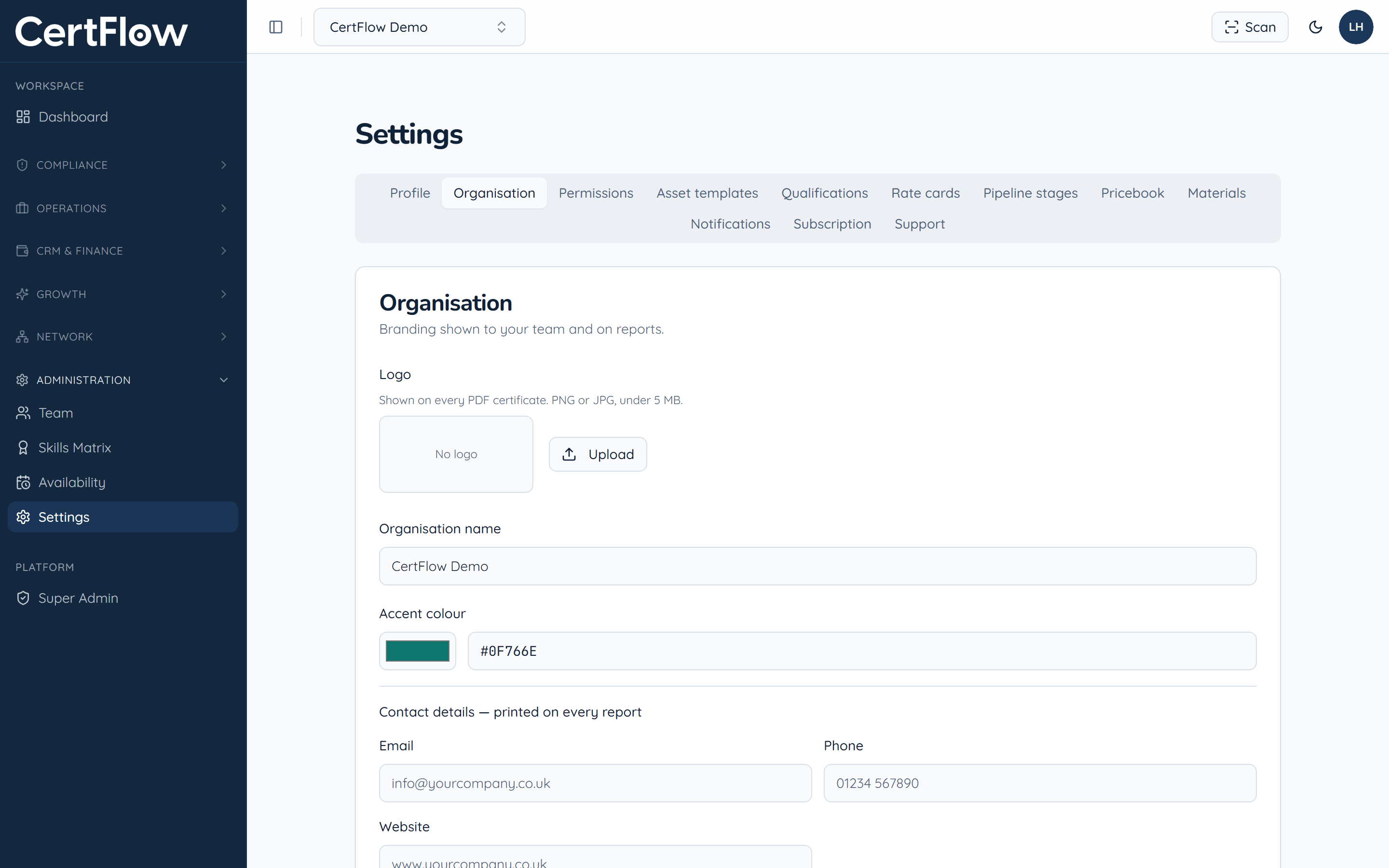
Open Settings and go to Organisation
Under Administration, open Settings, then the Organisation tab. Upload your logo (PNG or JPG under 5 MB), set your organisation name, and choose an accent colour. The logo appears on every PDF certificate.
- 2
Add the details that print on reports
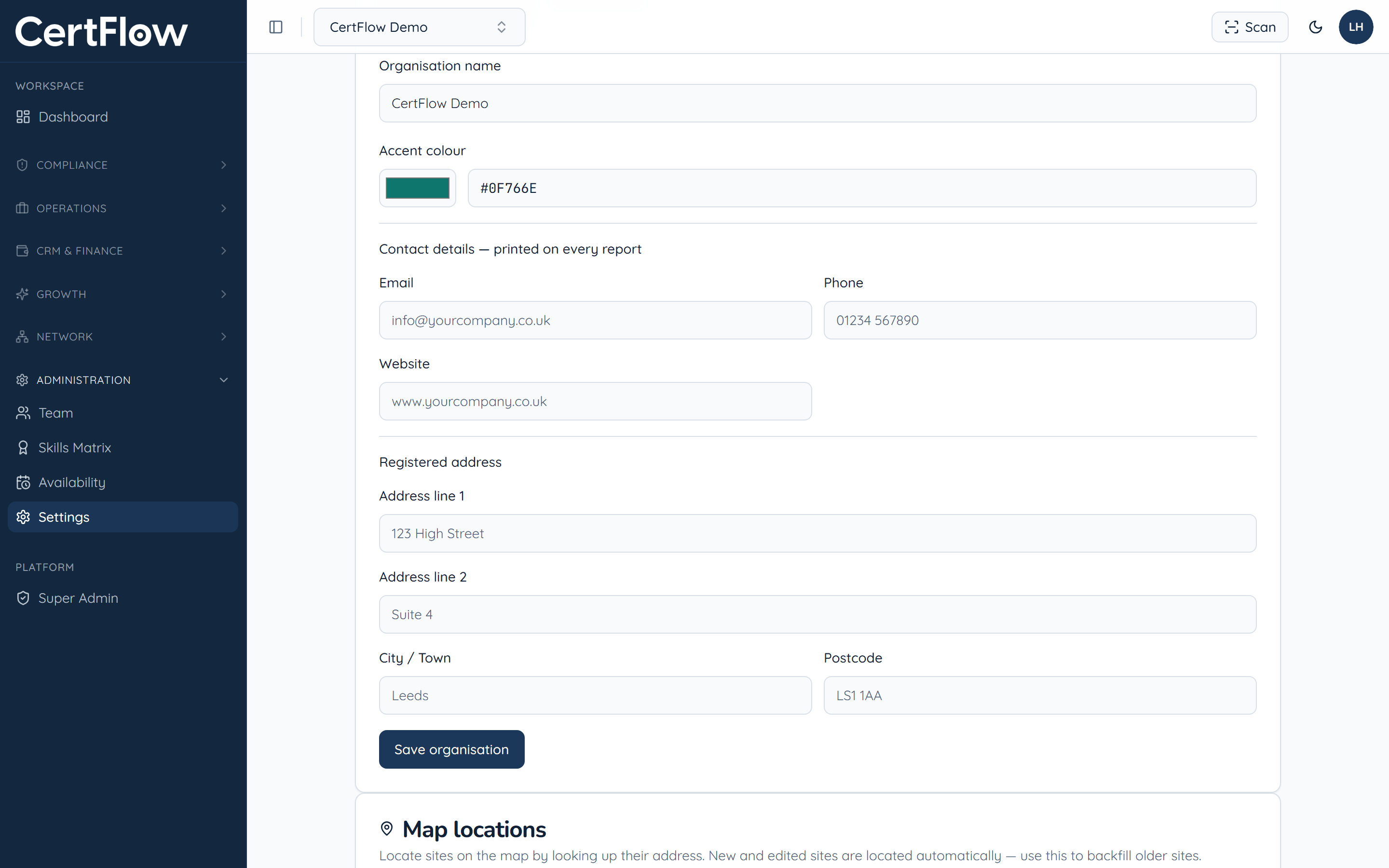
Fill in your email, phone, website and registered address. These print on every report, so clients and auditors can always see who issued the certificate.
- 3
Save your branding
Click Save organisation. From then on, your logo, accent colour and contact details appear automatically on every certificate and report you generate (see Generate and send a certificate).
Want to try this on your own data?