
Clients & finance
Raise and send an invoice
Invoice from the same place you manage the work. Create an invoice from scratch, convert an accepted quote, or generate one from a completed job, then track who has paid and who has not without leaving CertFlow.
- 1
Open Invoices and create one
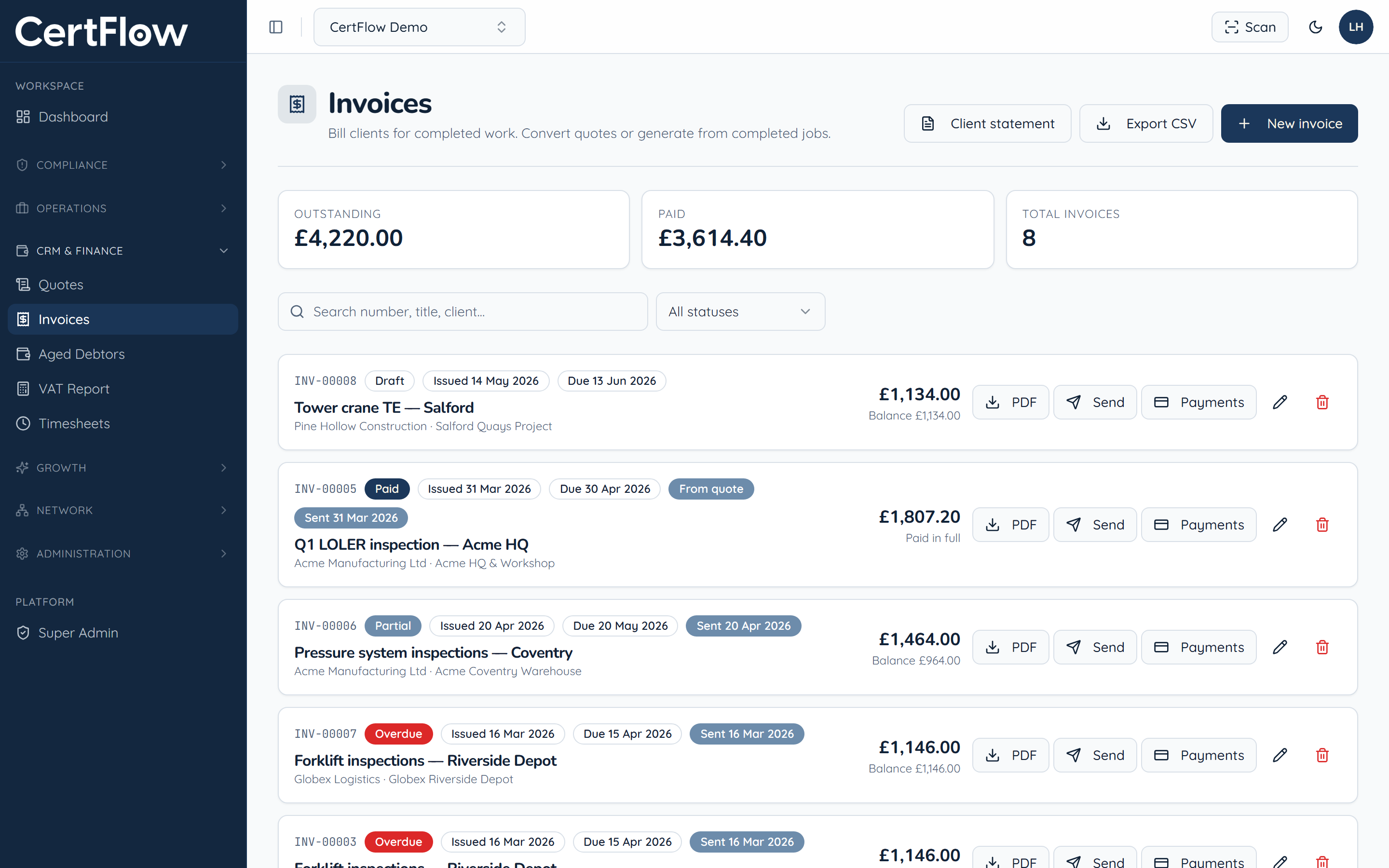
Under CRM & Finance, open Invoices. The summary shows what is outstanding, paid and overdue. Click New invoice, or convert an accepted quote with its Invoice button.
- 2
Add the client and line items
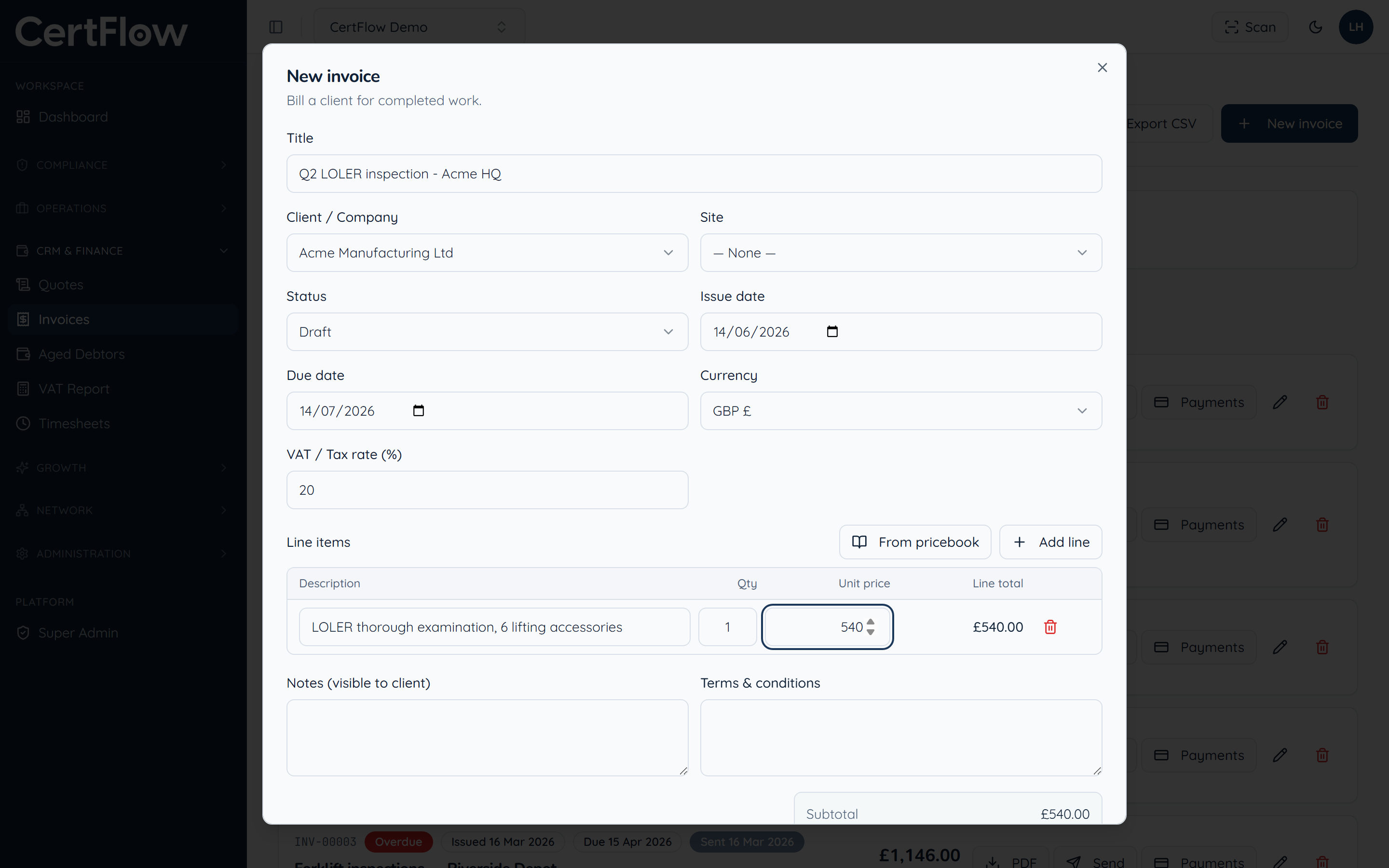
Set the title, client and site, add your line items (or pull them from the pricebook), and set the VAT rate and due date. Notes and terms you add here appear on the PDF the client receives.
- 3
Send the invoice
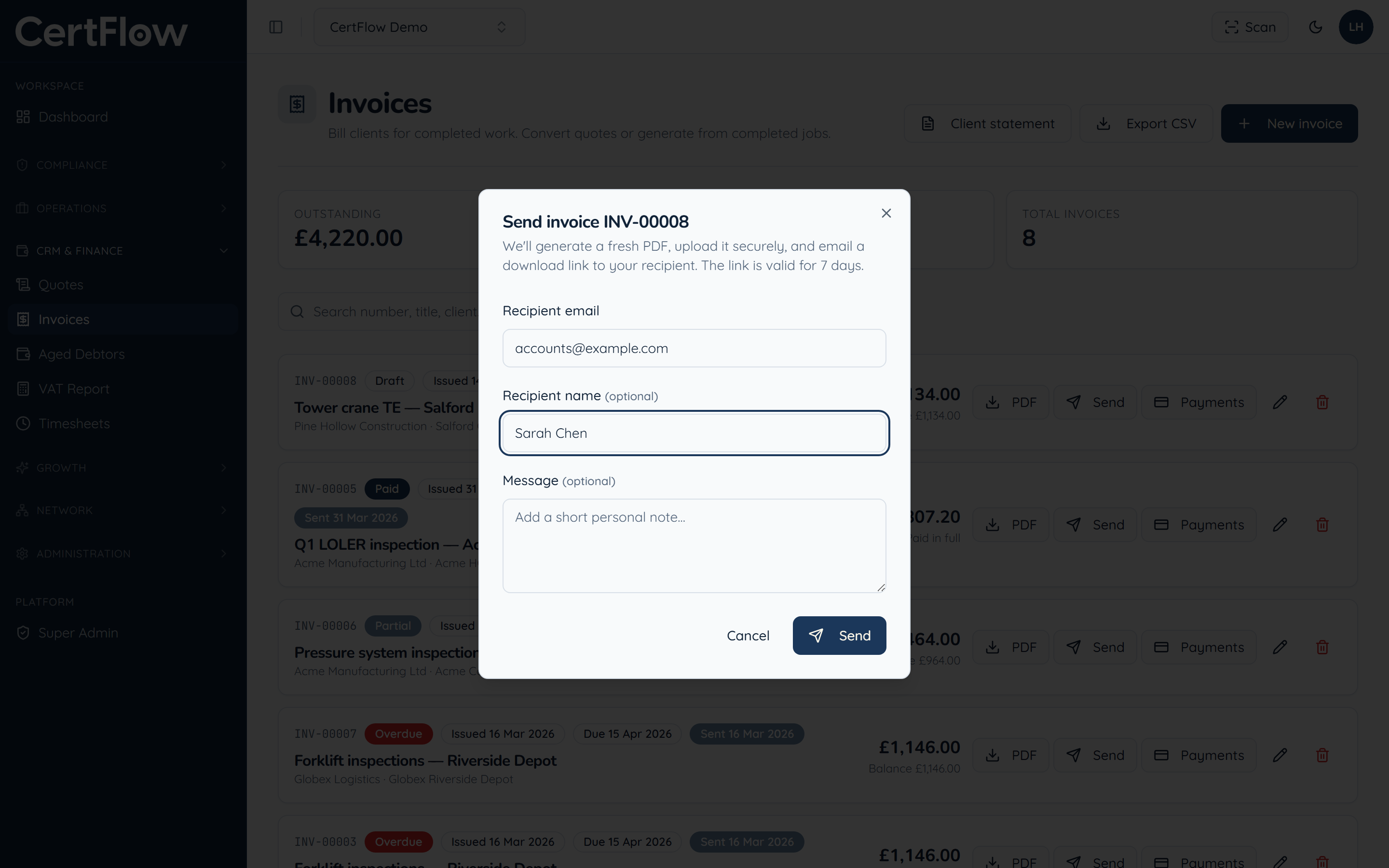
Click Send to email the client a secure PDF download link, valid for seven days. You can also download the PDF or export your invoices to CSV for your accountant.
- 4
Record payments as they come in
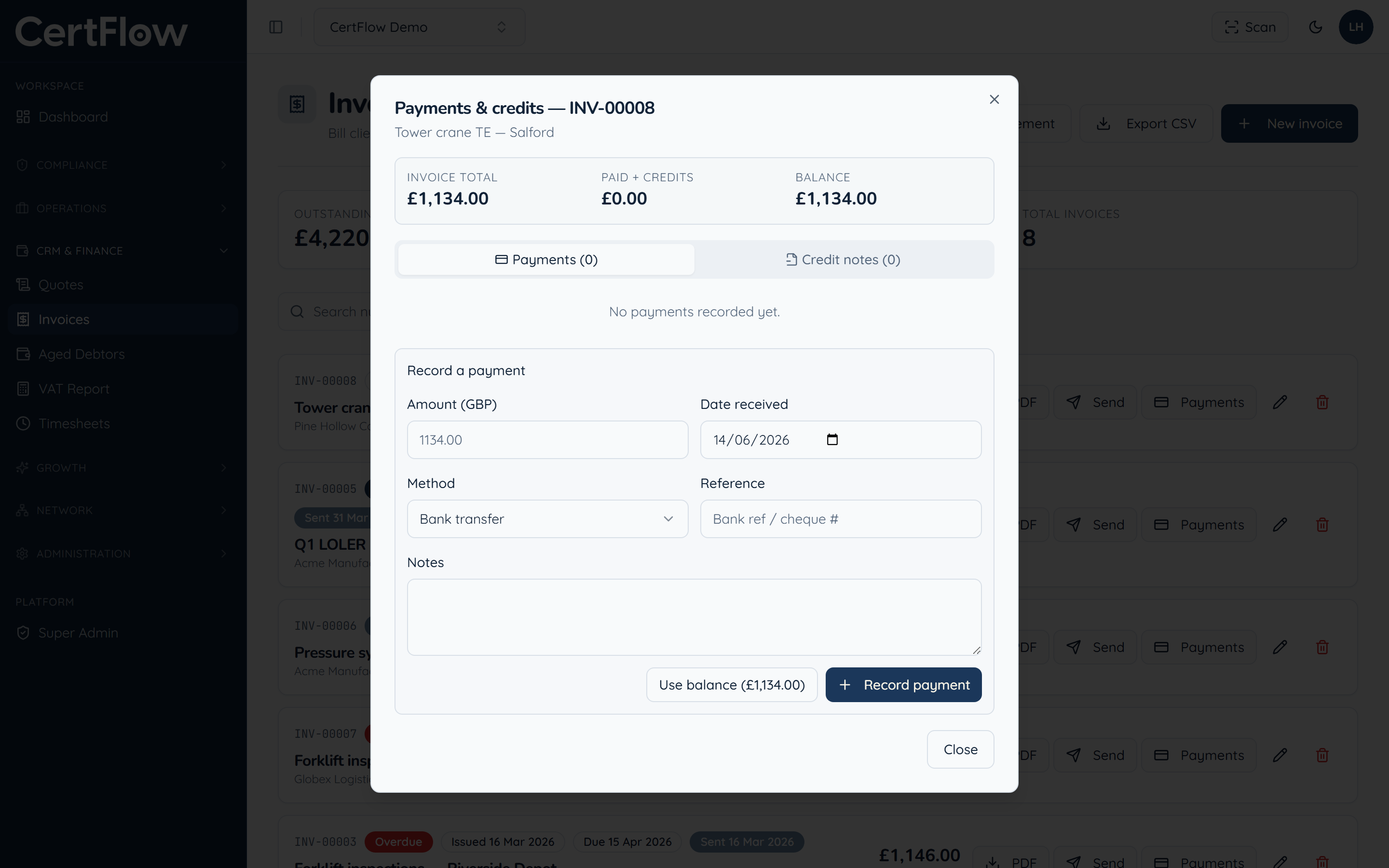
When the client pays, open Payments and record the amount, date and method. CertFlow updates the balance and feeds your Aged Debtors and VAT reports automatically, so you always know what is still owed.
Want to try this on your own data?