
Getting started
How to schedule a job
A job is a planned visit: an inspection round, a thorough examination, a maintenance call. Schedule it once and it lands on the calendar and on the engineer mobile app. Here is how.
- 1
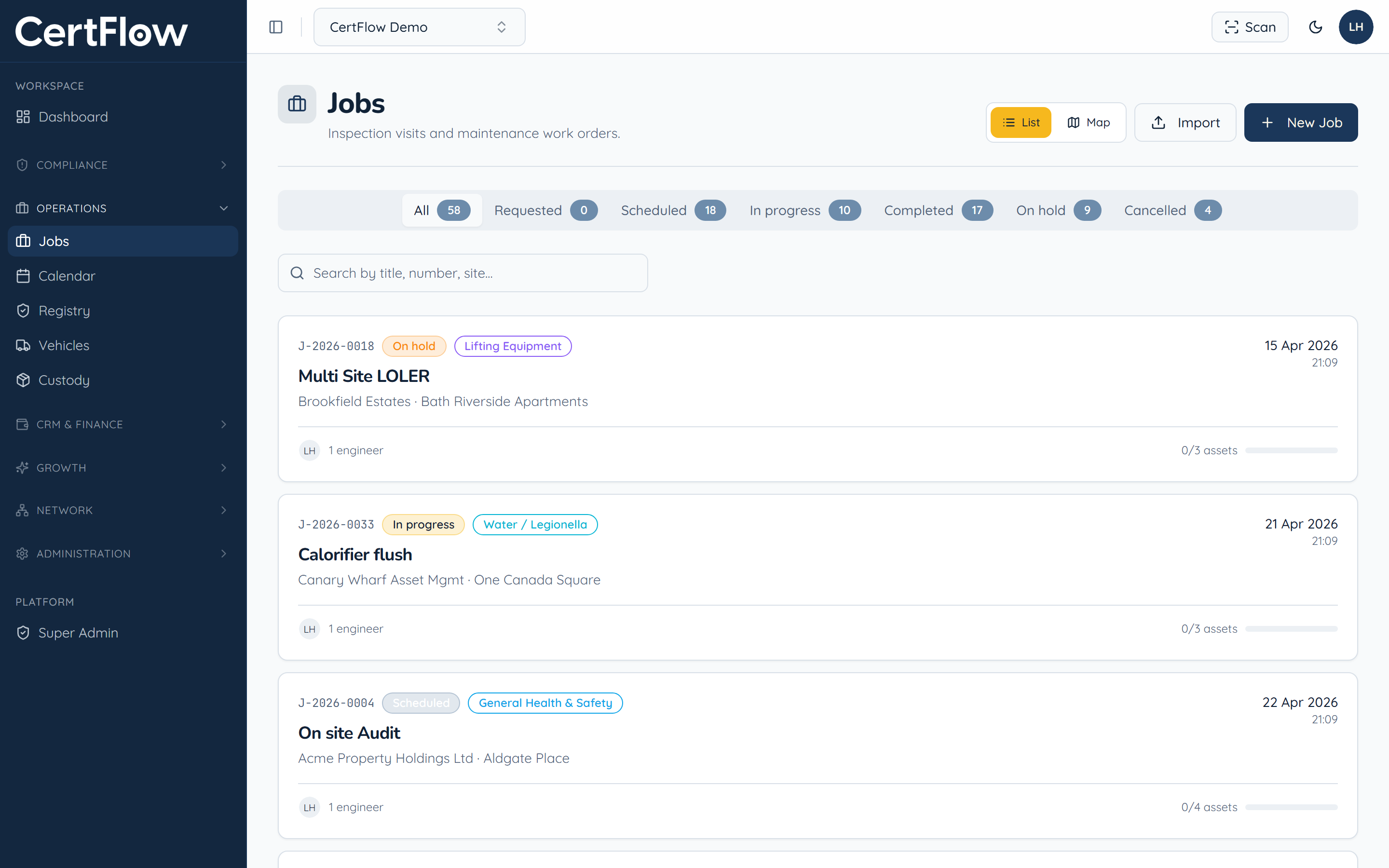
Open Jobs and click New Job
In the left sidebar, under Operations, open Jobs, then click New Job.
- 2
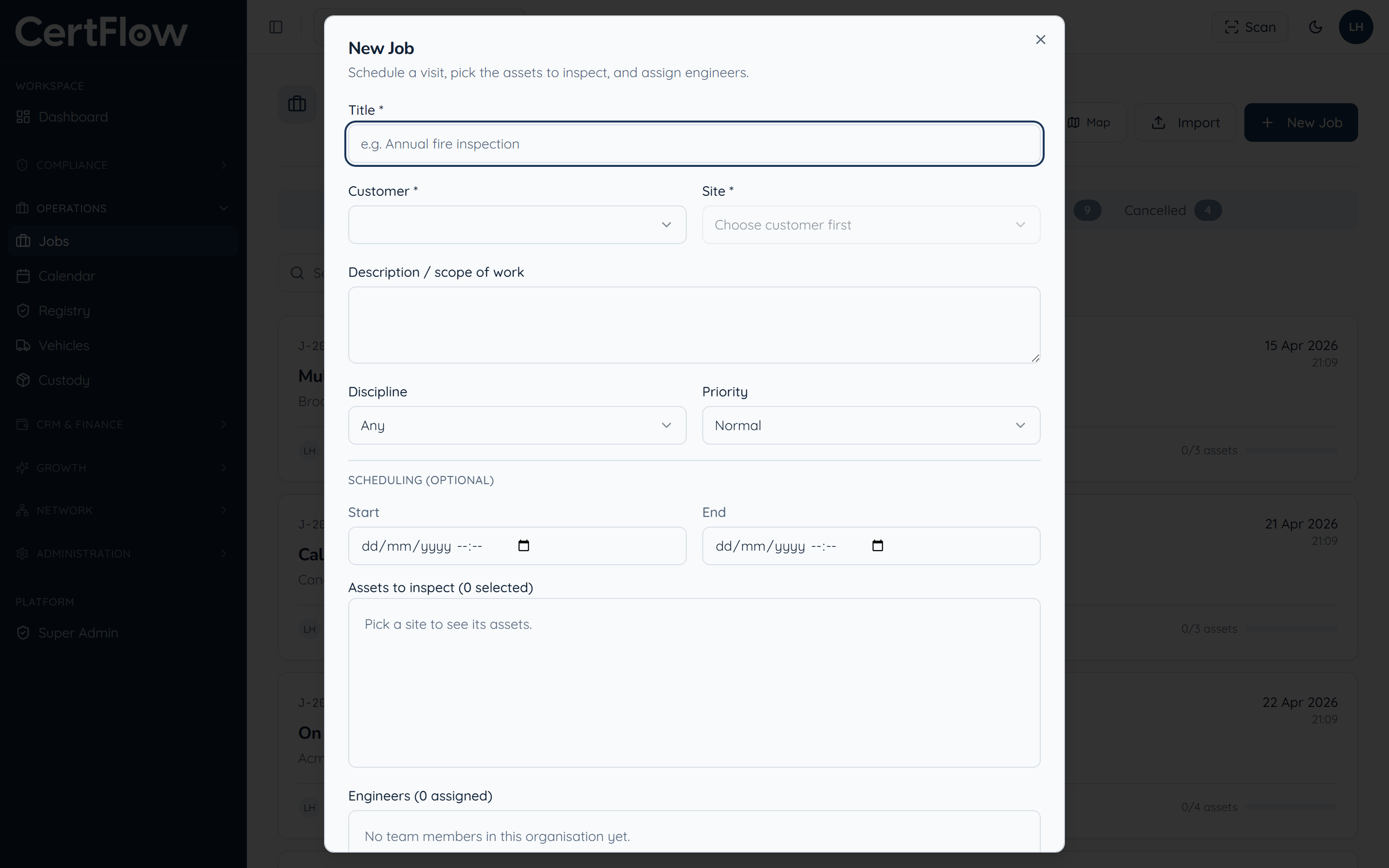
Title the job and pick the client and site
Give the job a clear title so it is obvious on the calendar, then choose the customer and the site you are visiting.
- 3
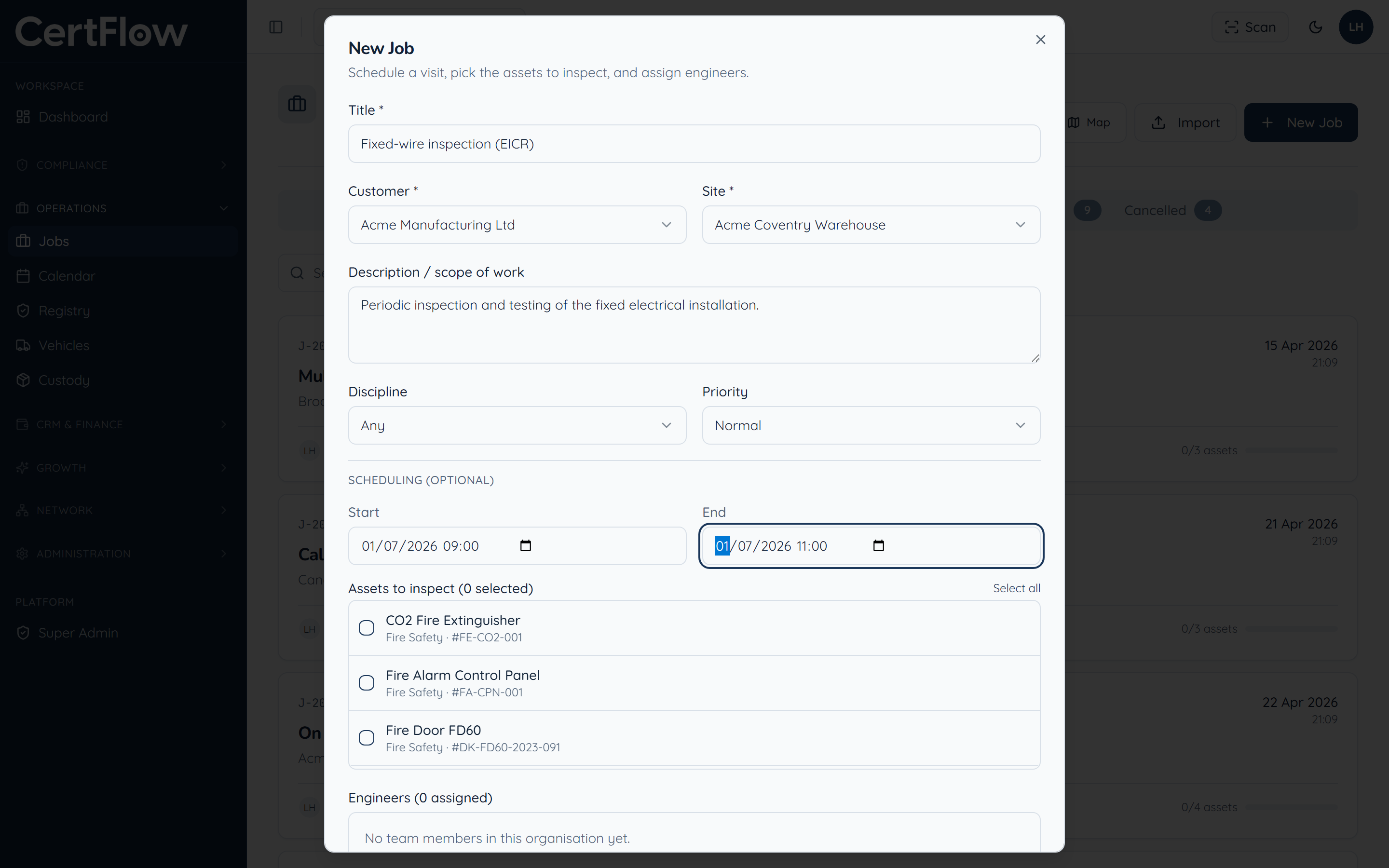
Choose the assets, set the date and assign engineers
Tick the assets to inspect, set the start and end times, and assign one or more engineers. The job then appears on their calendar and mobile app, online or offline.
- 4
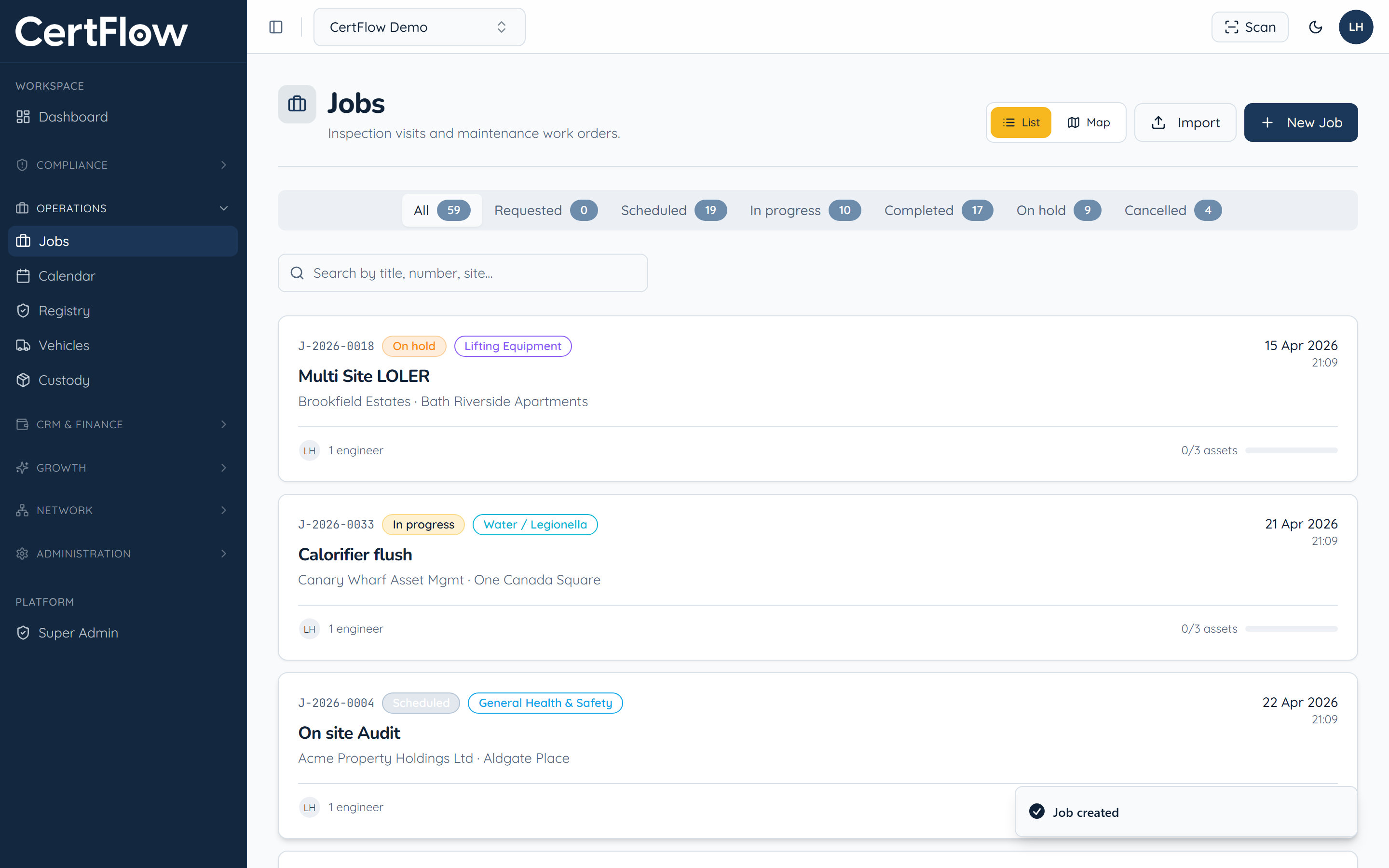
Save
Click Save. The job is scheduled and shows on the calendar, ready to run on site.
Want to try this on your own data?